Required MFA
All Trimble Identity accounts must use Multi-Factor Authentication (MFA). The default MFA method is using a One-Time Password (OTP). Any account that has not yet set up an MFA method must now log in using OTP as the authentication method or configure another method of their choice.
Once a month, you will be prompted to enter a one-time code.
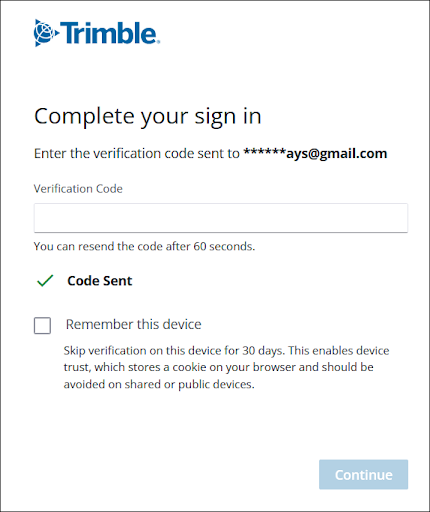
The code sent to your email address expires after 10 minutes. If you have not received a code or are experiencing issues with the code that was sent, you can generate a new one after 60 seconds.
By clicking Remember this device, you can skip this step when logging in from the same device for the next 30 days. After entering the code sent to your Trimble ID email address, log in by clicking Continue.
Not seeing a code?
If you received the email with the One-Time Password (OTP) but the code isn't working, please clear your browser cache and try again.
If you haven't received the email, it is possible that the emails are being redirected to a spam folder. Please check your spam folder.
Make sure our sending IPs/domains are on your server's allowlist:
trimblepaas.com
104.130.122.50mail.trimblepaas.com
209.61.151.244no-reply@account.trimble.com
54.240.27.19154.240.27.3054.240.27.31
If the above does not lead to a solution, please contact your Reseller.
Setup MFA
To add an extra layer of security to your account, you can set up multi-factor authentication. You can do this on your profile page: https://myprofile.trimble.com/home
There you will find this:
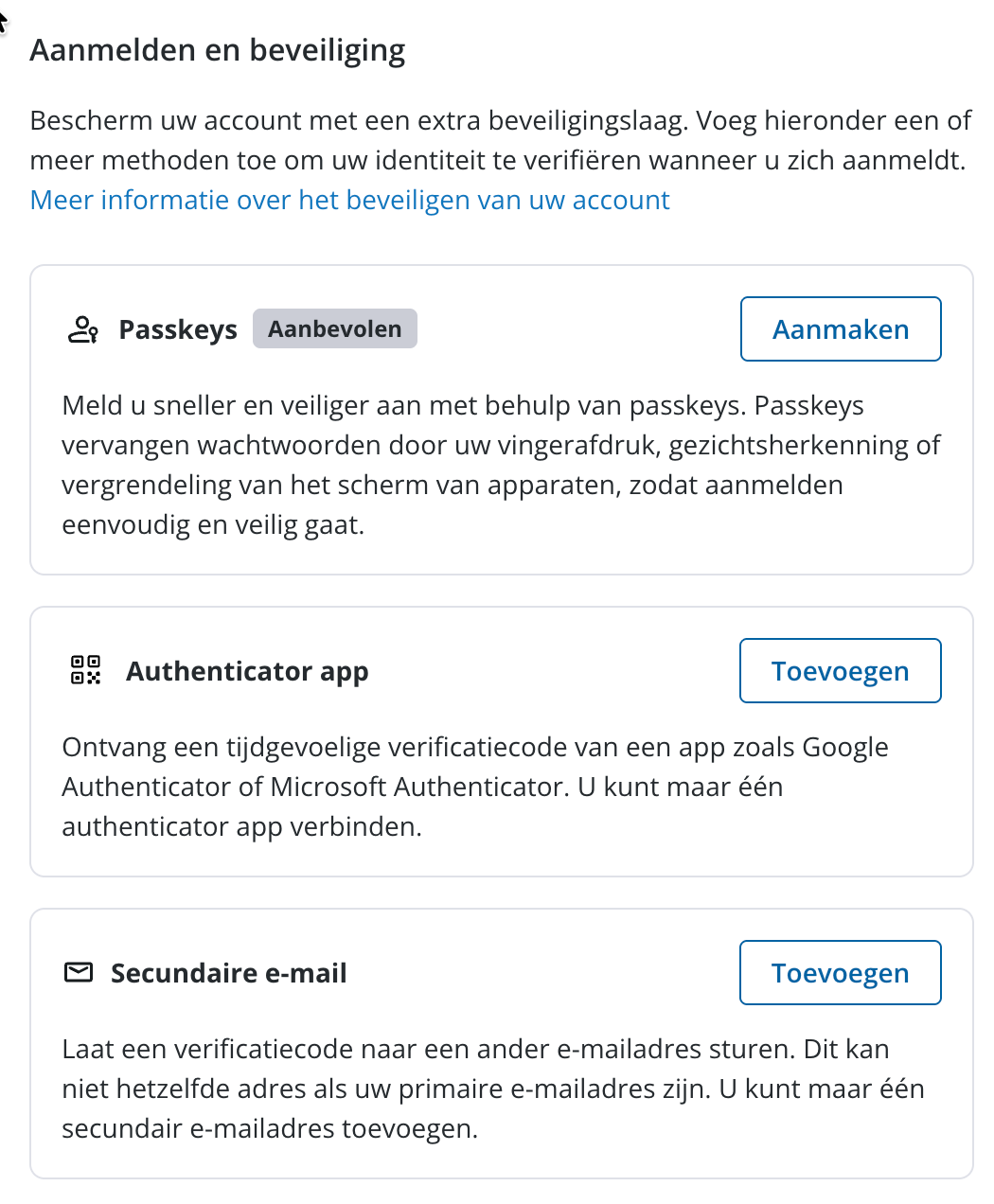
Above, you can see the recommended passkey MFA and other alternatives for setting up MFA.
Tip: It is a good idea to set up more than one method. This allows you to choose an alternative method if your primary method isn't working for any reason.
What is a Passkey?
Trimble Identity offers a flexible sign-in method using passkeys via Web Authentication (WebAuthn) support, which serves as an alternative to traditional password-based authentication. Passkeys allow you to sign in using a biometric sensor (such as a fingerprint or facial recognition), a PIN, or a pattern, eliminating the need to remember or manage passwords.
How do you create a passkey?
To create a passkey:
- Go to your Trimble My Profile page .
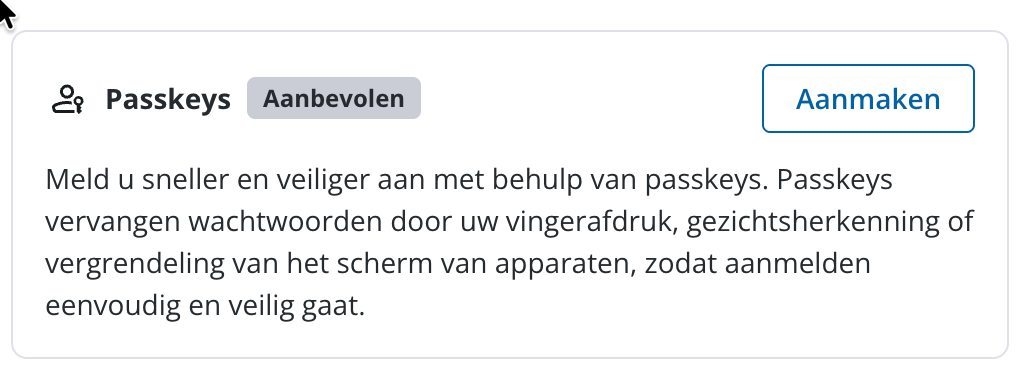
- On your profile page, in the section titled "Manage passkey", click on "Create passkey." 3. You will be redirected to the Create a Passkey page.
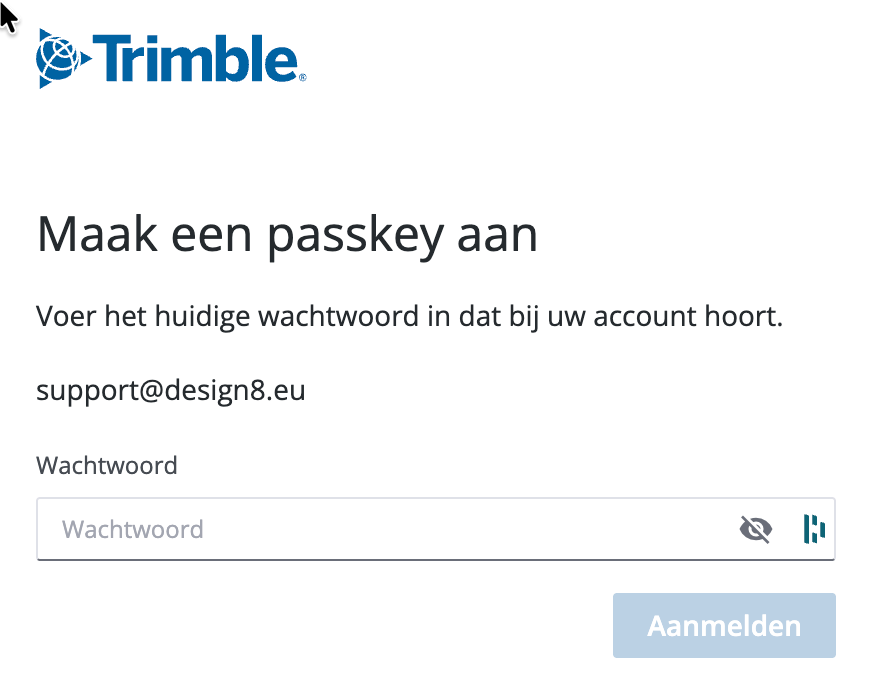
- On the Create a Passkey page, enter your password and click "Sign in".
- Click Create a passkey to set up your security key. You can use any option displayed by your browser to set up a security key.
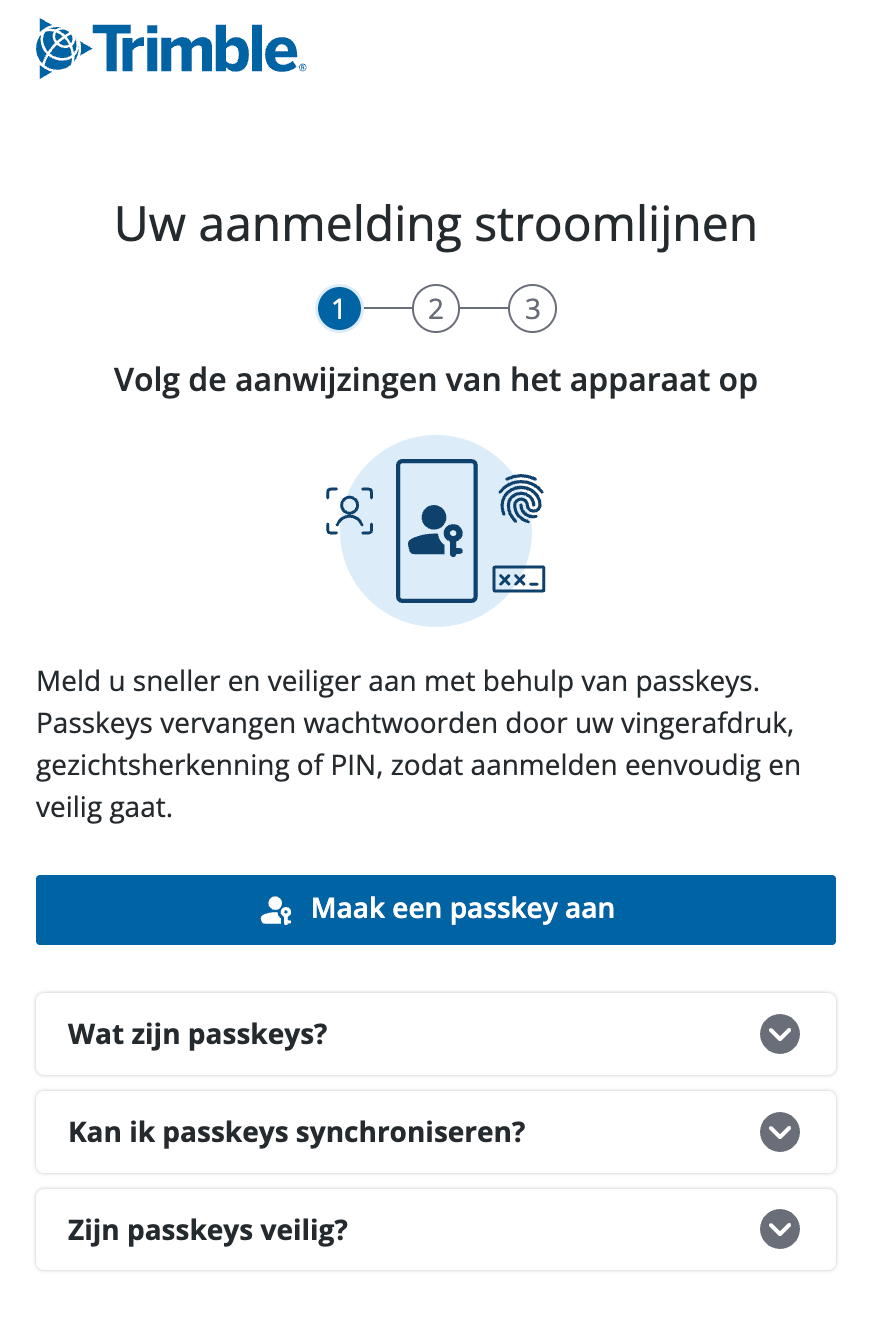
After registering the passkey, click Done. You will be redirected back to your profile page, and the registered passkey will be displayed under the Manage passkeys section. Starting from your next sign-in, you can use the Use a passkey option to log in.
How many passkeys can a single user have?
Why don't I see the passkey option in my profile?
How do I sign in with my passkey?
Option 1: Sign in with your passkey on the password page
- On the Trimble Identity Sign-in page, within the password screen, click "Use Passkey".
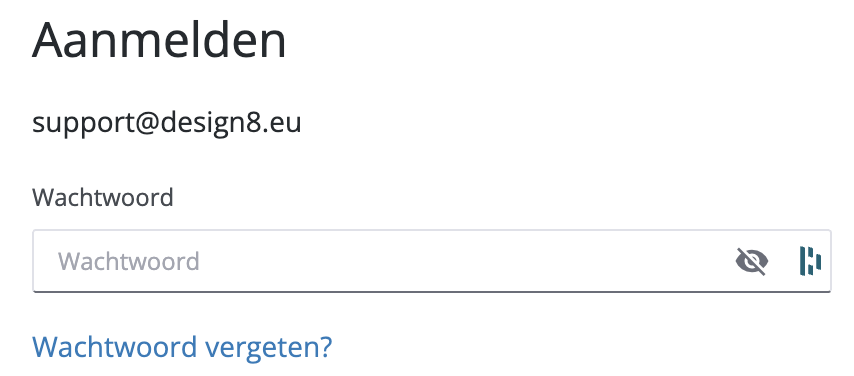
- Unlock by entering your biometrics or using other methods registered for the passkey.
Option 2: Sign in using your passkey on the initial sign-in page
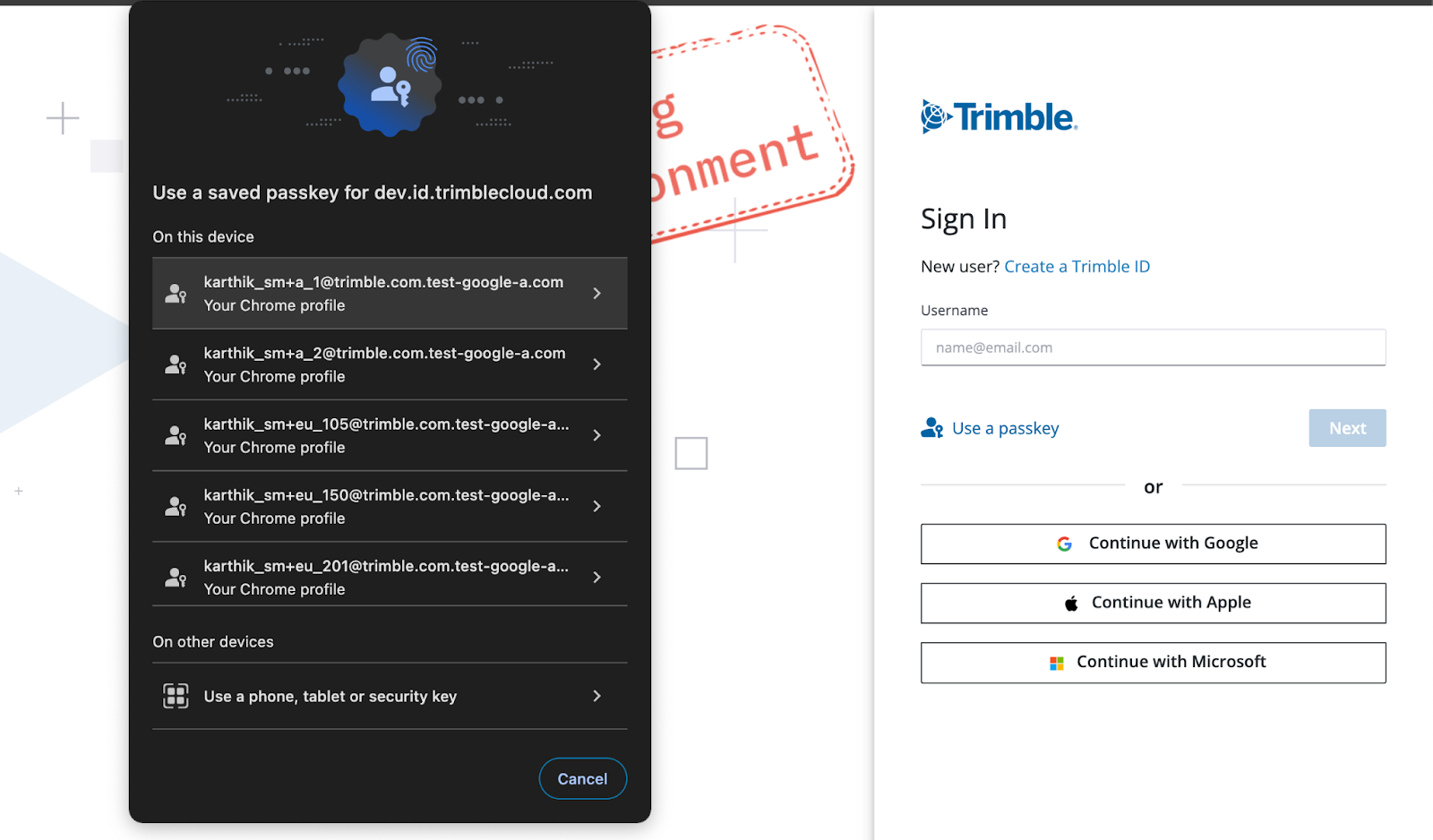
- On the Trimble Identity Sign-in page, click Use a passkey.
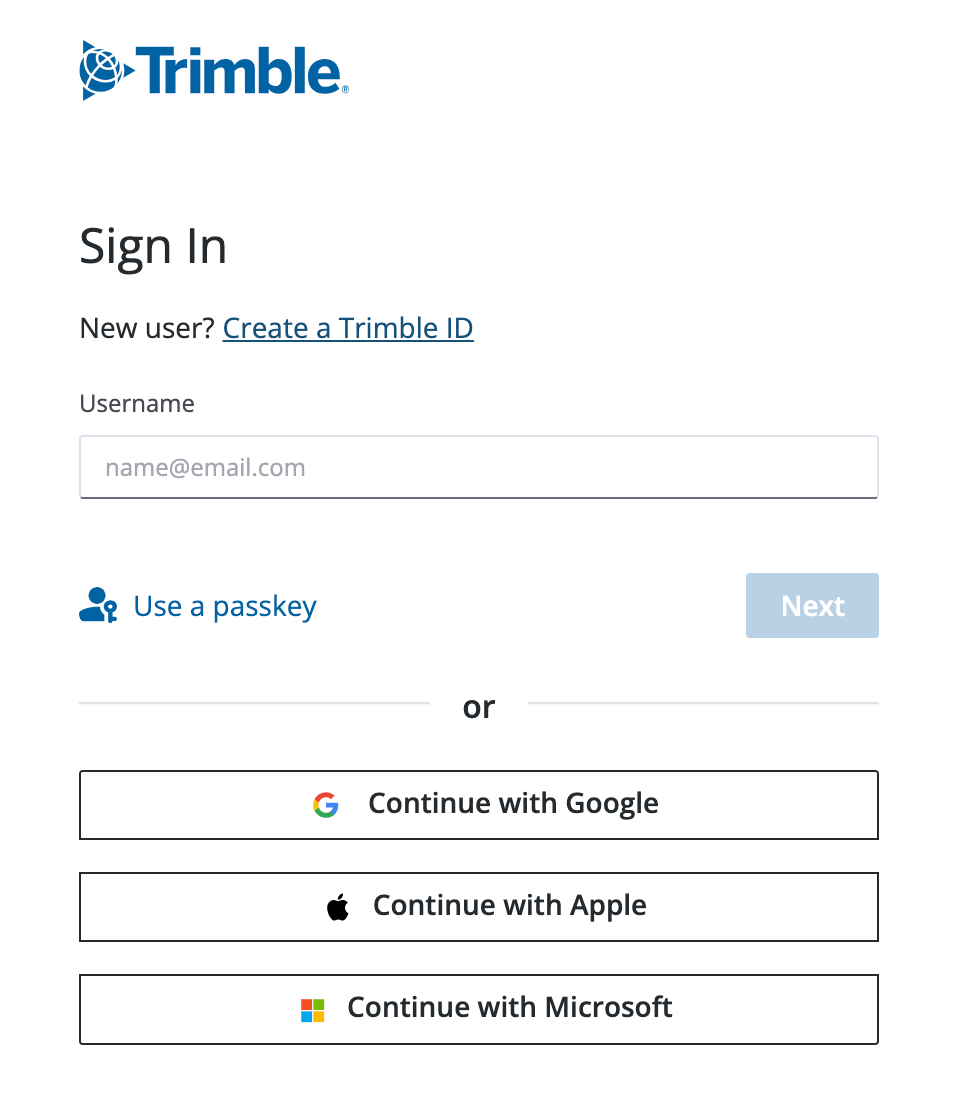
- Choose the appropriate option from the pop-up and unlock by entering your biometrics or using other methods registered for the passkey.
How can I edit or delete a passkey?
To edit or delete a passkey, go to your Trimble My Profile page:
Click the pencil icon to change the name of your passkey.
Click the X icon to delete your passkey.
Was this article helpful?
That’s Great!
Thank you for your feedback
Sorry! We couldn't be helpful
Thank you for your feedback
Feedback sent
We appreciate your effort and will try to fix the article