Overview
Chaos products can utilize two licensing models: Cloud Licensing and the License Server.
Cloud Licensing offers maximum flexibility, allowing users to log in with their Chaos account. They can use products from any location with an internet connection, without the need to be on the same local network or connect via VPN to a License Server.
Starting in 2026, new versions of Chaos products have Cloud Licensing built directly into the product. These versions can retrieve licenses without the need for a License Server.
Cloud Licensing is optional — you can continue to use your current License Server if you prefer, and you can switch back at any time. You can also use both methods in parallel: newer product versions can use Cloud Licensing, while older versions continue to use the License Server. Unattended machines, such as render nodes and fully offline environments, can also continue to use their respective License Server installations.
Preparation installing Chaos cloud license
Before products are installed in Cloud Licensing mode, the administrator (Admin) must do the following in My Chaos:
Add users to the organization Add everyone who should be able to use Chaos products to your organization in My Chaos.
You can add users in bulk by uploading a CSV file.
Larger organizations can use single sign-on (SSO) and automatic user provisioning by integrating their identity provider.
Assign License
Gemini zei
Named licenses: Assign each Named license directly to the individual who will use it. That license then becomes dedicated specifically to them.
Floating licenses (shared pool):
Assign all Floating licenses to the Admin account.
Enable Floating License Sharing under the Organization tab.
Floating licenses assigned to the Admin become a shared pool for everyone within the organization. Currently, only one shared pool is supported.
If you are unsure how to do this, please refer to this article:
How to add a member to your pool and assign a license to them
After preparation:
- Everyone who needs access has a Chaos account that has been added to the organization and can sign in.
- Named seats are assigned to specific users.
- The shared Floating license pool is ready. If using a Floating license.
- You can now start moving machines to Cloud Licensing.
Migration path
Local license server on each machine?
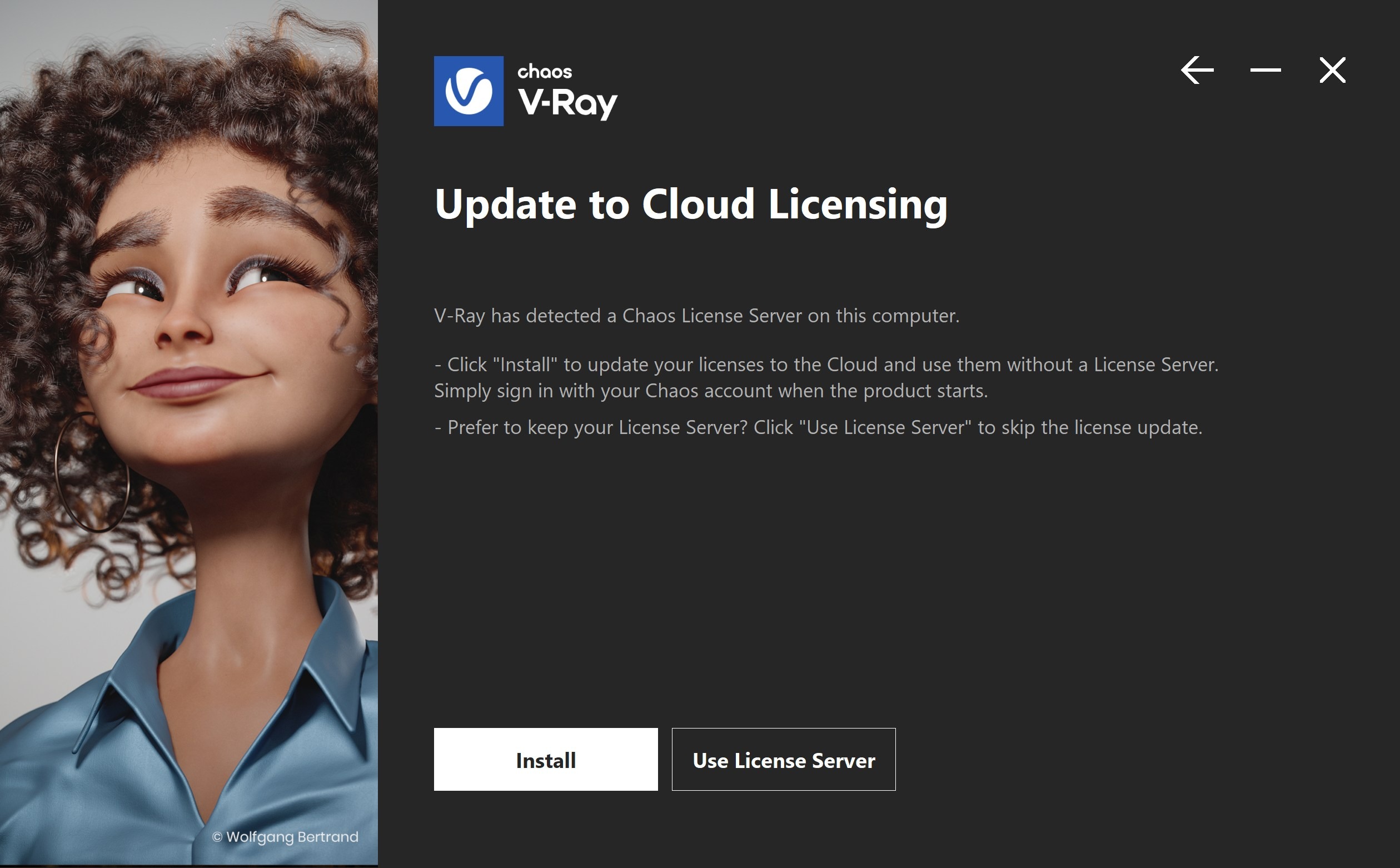
Current setup: Each machine runs a License Server alongside the product, where users sign in with their Chaos Account. This also applies to machines with a product version from before 2026 that was installed with default settings. The installation automatically added a local License Server for sign-in licensing.
After the preparation steps are complete, perform the following on each machine:
Install or update to a version of the Chaos product that features built-in Cloud Licensing.
During installation, the installer will suggest updating the license settings to Cloud Licensing (you have the option to continue using the local License Server if necessary).
Click Install to switch to Cloud Licensing and then complete the installation.
After this, the newly installed product will directly use Cloud Licensing. The local License Server will remain installed on the device, allowing older product versions to continue using it.
Central license server for whole team?
Gemini zei
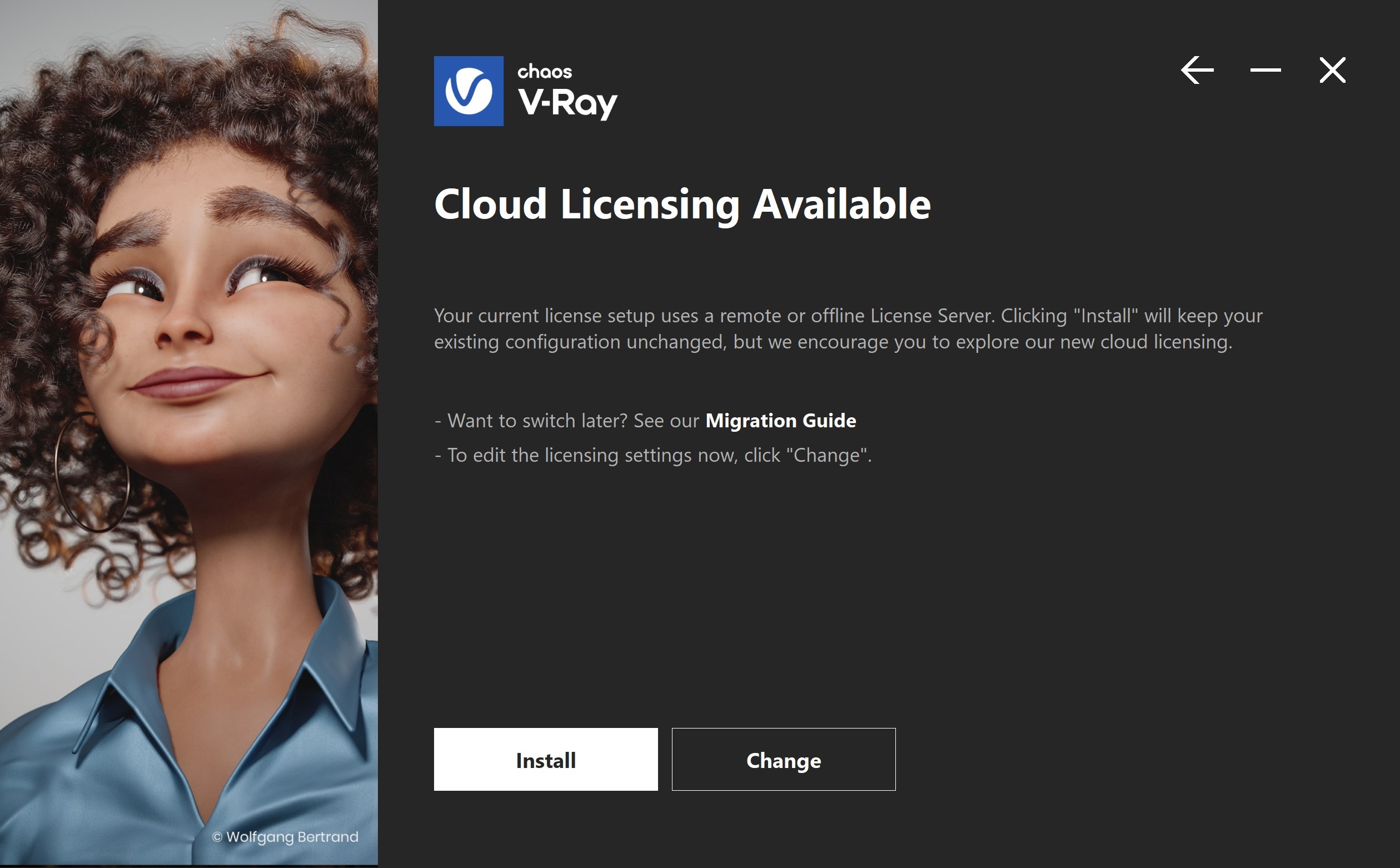
Current setup: Users install the Remote Licensing option and point the product to a shared License Server on the local network.
After the preparation steps are complete, perform the following on each machine:
Install or update to a version of the Chaos product that features built-in Cloud Licensing.
The installer will display a notification about the availability of Cloud Licensing, but it will not switch automatically.
Click Change. In the licensing options, select Cloud Licensing and then complete the installation.
After this, the newly installed product will directly use Cloud Licensing. Older versions of the product can continue to use the existing License Server.
After migration
For every product version using Cloud Licensing:
Open the product.
Log in with your Chaos Account or via corporate SSO when prompted (depending on how the organization is configured).
After logging in:
If a license has been directly assigned to you, that license will be used.
In all other cases, the product will use a Floating license from the shared pool.
Important!: Cloud Licensing always requires internet access so the user can log in. Offline environments are not supported by Cloud Licensing. Unattended systems, such as "lab systems and render nodes," are not suitable for Chaos Cloud Licensing. These types of systems will continue to use the current License Server.
Was this article helpful?
That’s Great!
Thank you for your feedback
Sorry! We couldn't be helpful
Thank you for your feedback
Feedback sent
We appreciate your effort and will try to fix the article