What should you do if SketchUp displays the following message: 'You have exceeded your allowed activations' or 'Technical difficulties'?
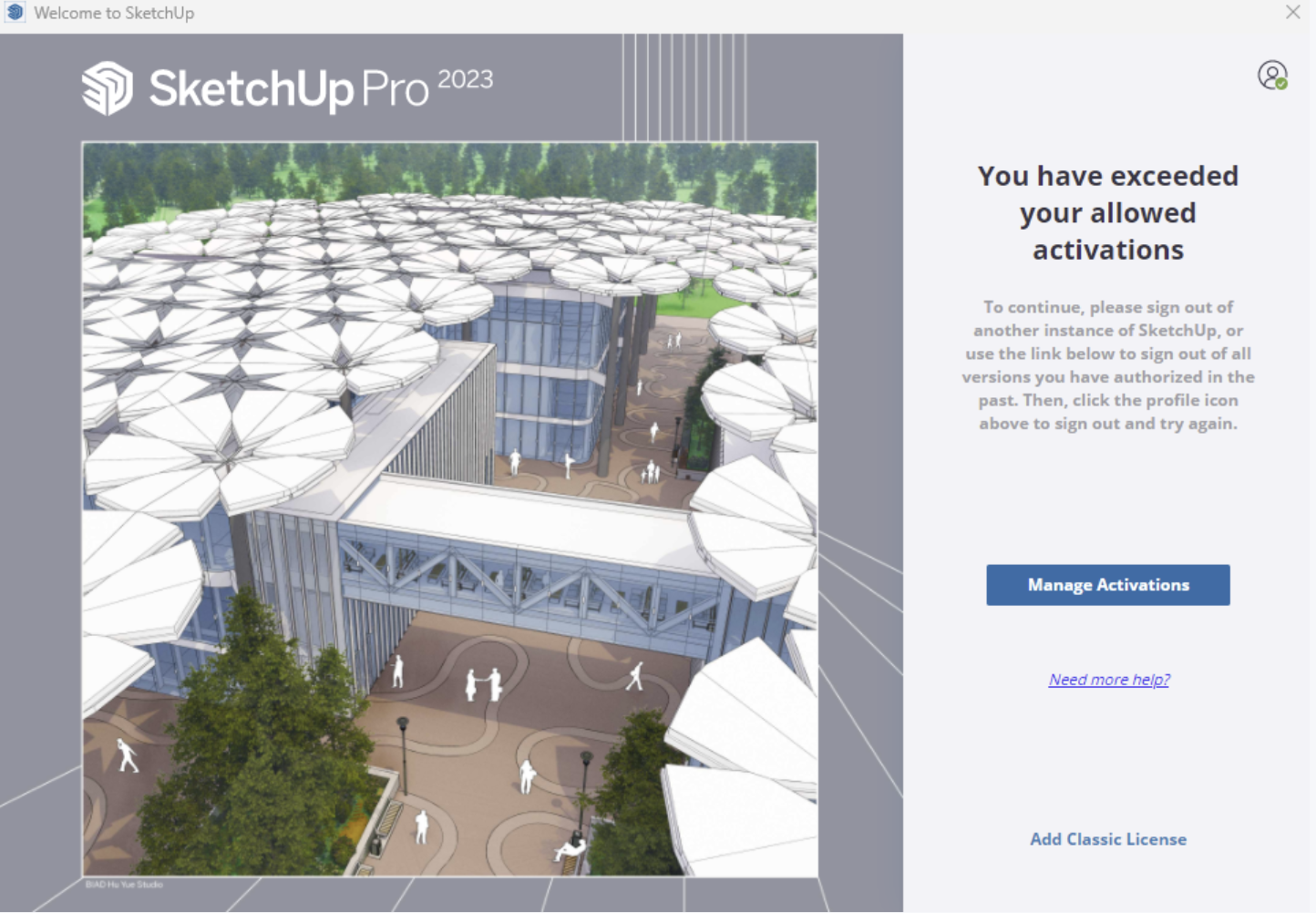
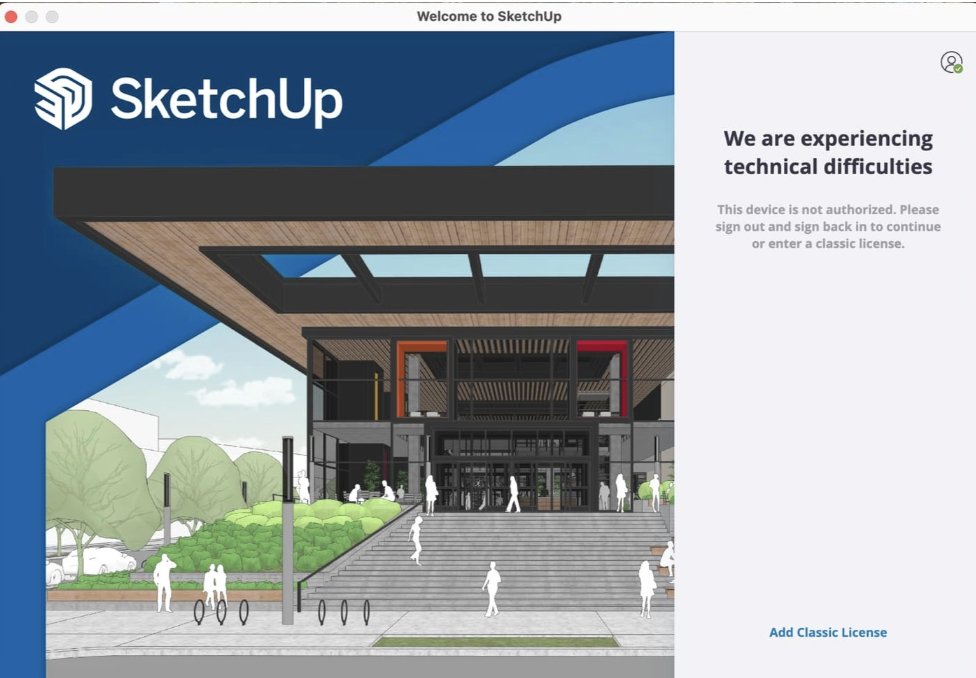
Please note that the steps below no longer apply to SketchUp 2026 when encountering the message: 'You have exceeded your allowed activations.' You can now simply click the button provided to resume using SketchUp.


Note: These instructions remain applicable if you receive a 'Technical difficulties' notification.
- "Please navigate to https://myaccount.trimble.com/ Alternatively, if you are visiting https://sketchup.com/, click the icon in the top-right corner and select 'My Products'.

- Within the Admin Console, you can access the Account Management Portal located under the SketchUp section.
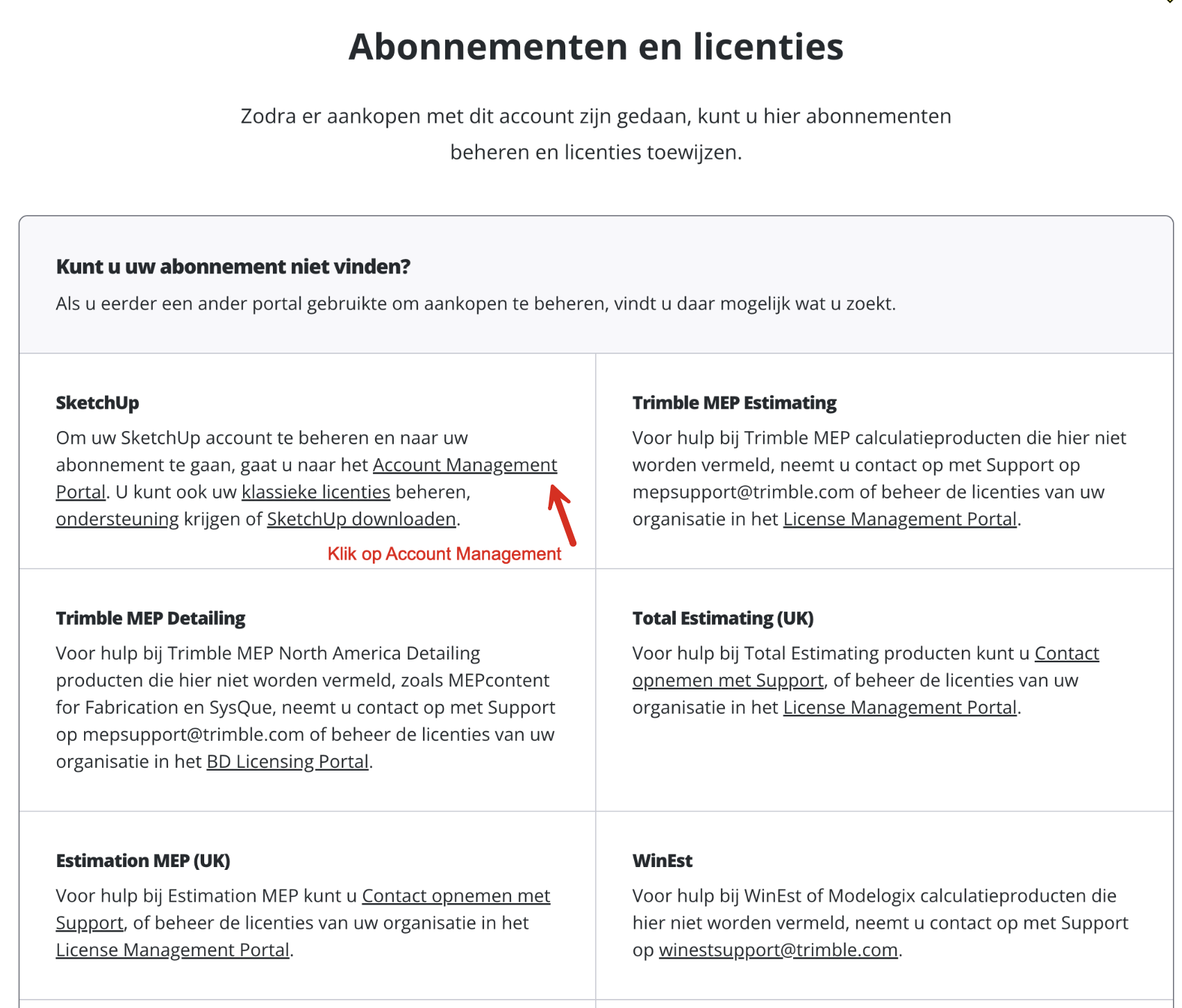
3. By selecting the Account Management option,
you will be redirected to the familiar Account Management Portal (AMP).
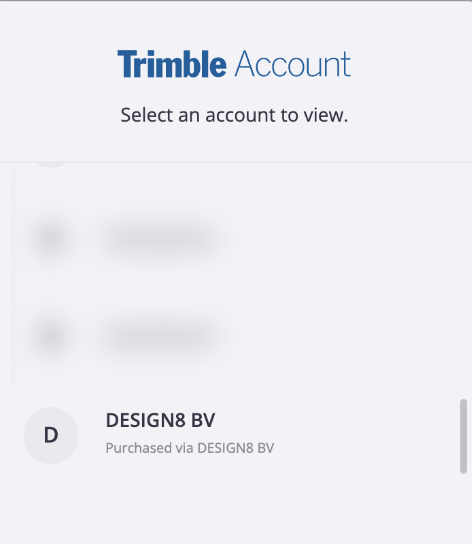
4. Next, please select your account under the 'Purchased via' section. See the example below for reference."
5. Select the 'My Products' option in the overview below.
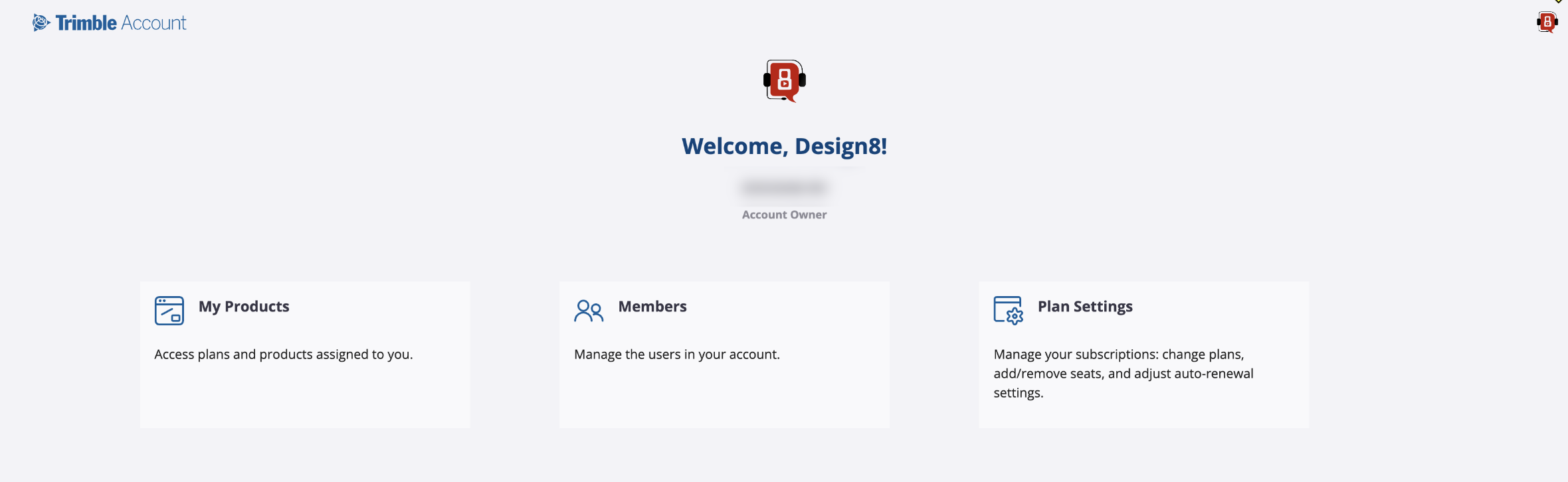
6. Next, select 'View Included Applications' to open the detailed view.

7. From there, select 'Manage Devices'.
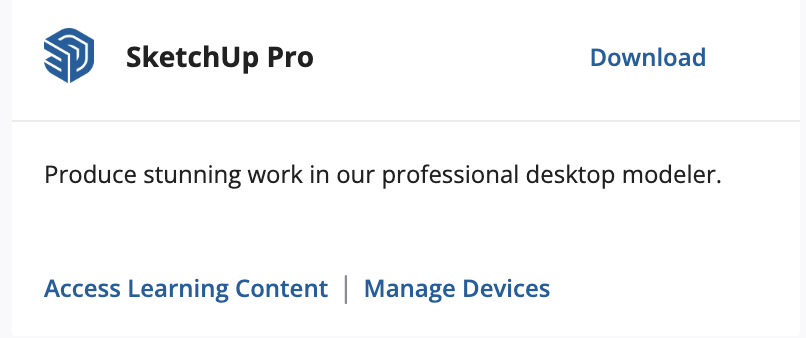
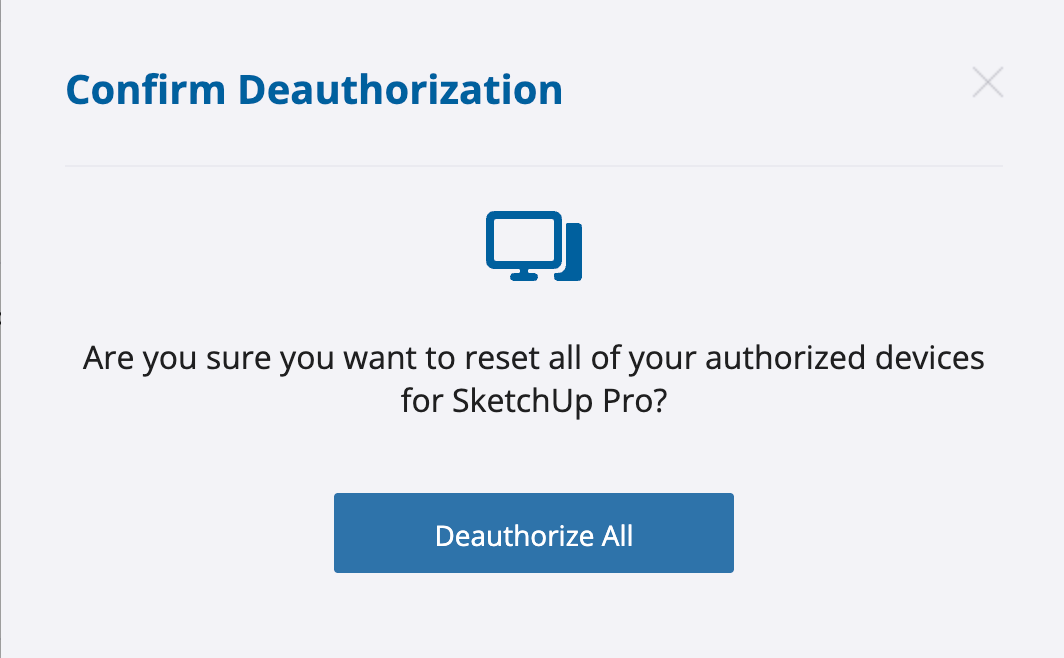
8. Then, choose the 'Deauthorize' option to sign out of all active sessions.
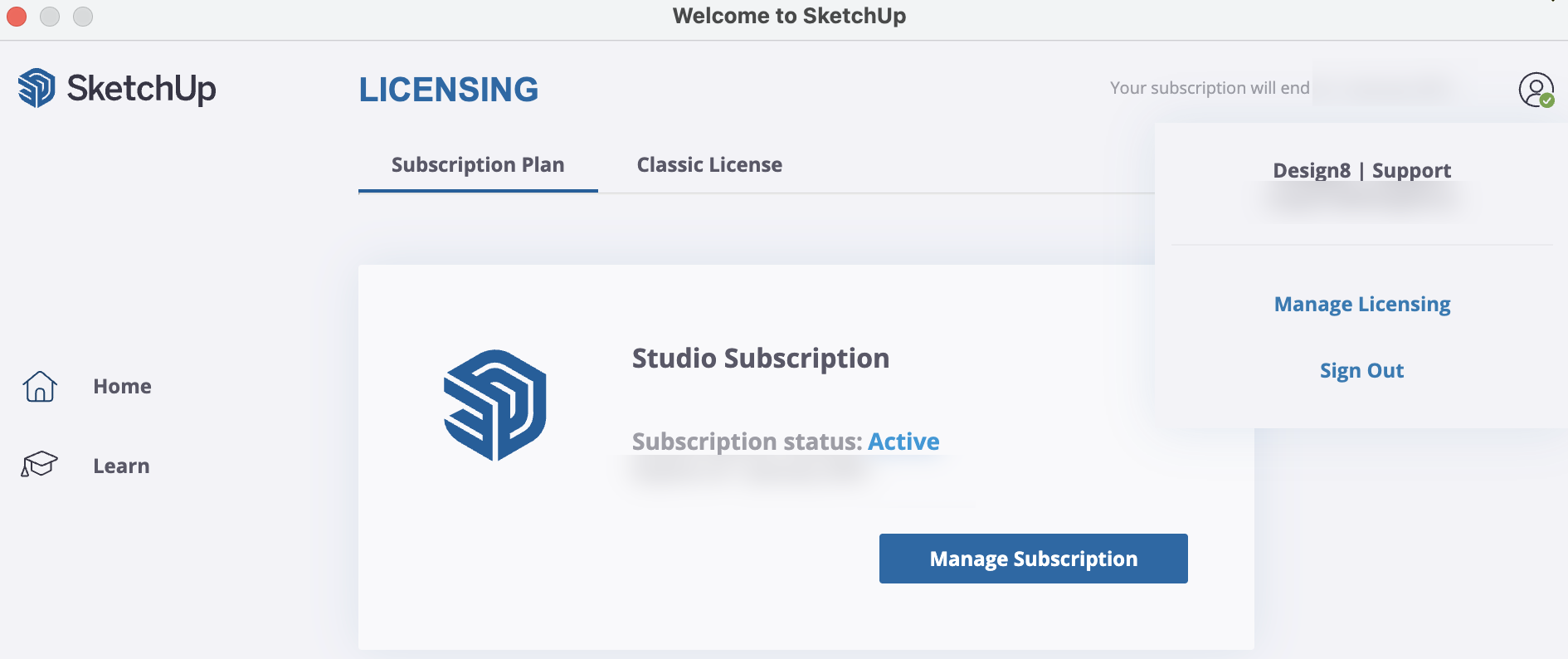
9. As a final step, you must sign out of SketchUp and then sign back in. To do this, click on the user icon in the top-right corner, log out, and then log back in."
The video below provides additional clarification regarding the steps mentioned above.
Was this article helpful?
That’s Great!
Thank you for your feedback
Sorry! We couldn't be helpful
Thank you for your feedback
Feedback sent
We appreciate your effort and will try to fix the article